
How-To: ACC Liveries
Custom liveries for Assetto Corsa Competizione (ACC): where the game keeps them, which files to upload and how to install them. The steps of the livery form are in Livery Upload.
Folders
Documents\Assetto Corsa Competizione\Customs\Liveries\<skin name>: the livery folder with its files.Documents\Assetto Corsa Competizione\Customs\Cars: the car files (json). A car file uses a livery through itscustomSkinName.
The Skin name in the livery form is the name of the livery folder. It must be the same as customSkinName in your car file, and no other ACC livery may use it.
Livery files
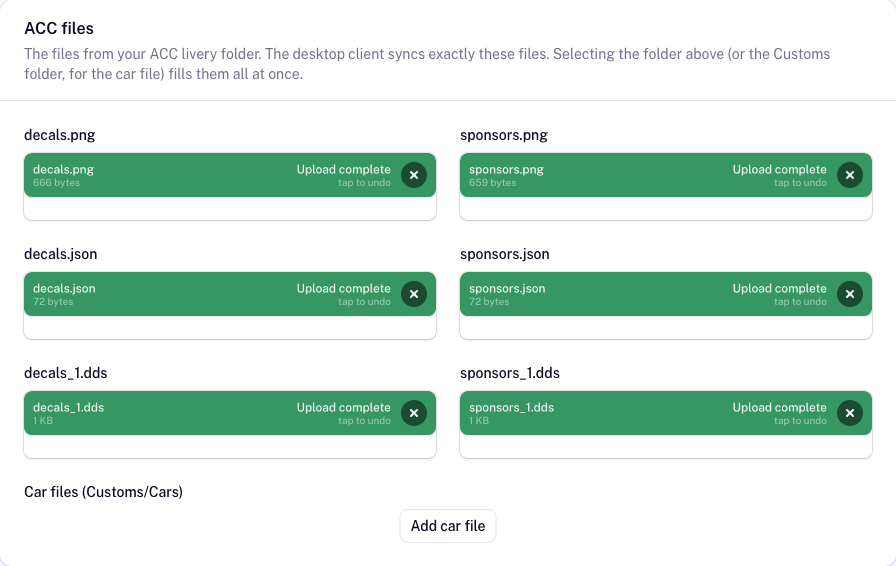
An ACC custom livery consists of two layers, decals and sponsors. Each consists of the image (decals.png, sponsors.png), the material configuration (decals.json, sponsors.json) and the DDS file the game creates from the image (decals_1.dds, sponsors_1.dds). You don't need both layers: it is fine to upload only the decals files and leave the sponsors files empty, or the other way around.
The quickest way: select your livery folder, or the whole Customs folder, or drop it onto the form. All six file fields are filled at once, files missing in the folder are listed as a warning, and an empty skin name takes the folder name. With the Customs folder, the car files with this skin name are added, too, and set the car.
DDS files
When you provide an image, also upload its _1.dds (decals_1.dds or sponsors_1.dds). Without it, ACC creates the file when you join a session, which causes join lags for everyone in a multiplayer session.
ACC creates the _1.dds files once you join a (local) session with your livery, e.g. a single player practice. They are usually about 5.6 MB. A file of about 20 MB is a _0.dds, which is only used for the showroom in the game: don't upload it, the form rejects it.
For more insights, watch Boonatix' tutorial on custom liveries.
Car files
Additionally, you can upload one or more car files from Customs\Cars, each with a short description. This way you can
- check that the skin name is set correctly,
- share a basic team setup with your livery and the colours you want,
- share several colour variations for the in-game editor.
Car files are shown on the livery page. The desktop client does not sync them, but you can download them in its livery details and manage them in its Garage.
Installing ACC liveries
The easiest way is the desktop client: follow the collections you race with, and the client installs and updates their liveries. See Livery Sync.
For a single livery, click Download ZIP on its livery page and copy the folder from the ZIP to Documents\Assetto Corsa Competizione\Customs\Liveries. Car files are listed separately on the livery page; they go to Customs\Cars.
Problems
- The livery does not show up on the car: the folder name in
Customs\LiveriesandcustomSkinNamein the car file must be exactly the same. - Joining a session lags: a livery is missing its
_1.ddsfiles. Switch on Generate DDS files or Only liveries with DDS files in the desktop client, see Livery Sync. - The form rejects a DDS file: it is most likely the
_0.dds. Upload the_1.ddsinstead.